Edit Group

Step 1
1. Locate the group card that you would like to edit and select the vertical menu at the top right corner of the card.
2. Select the menu item, edit group.
3. The edit group form will appear from the bottom panel.
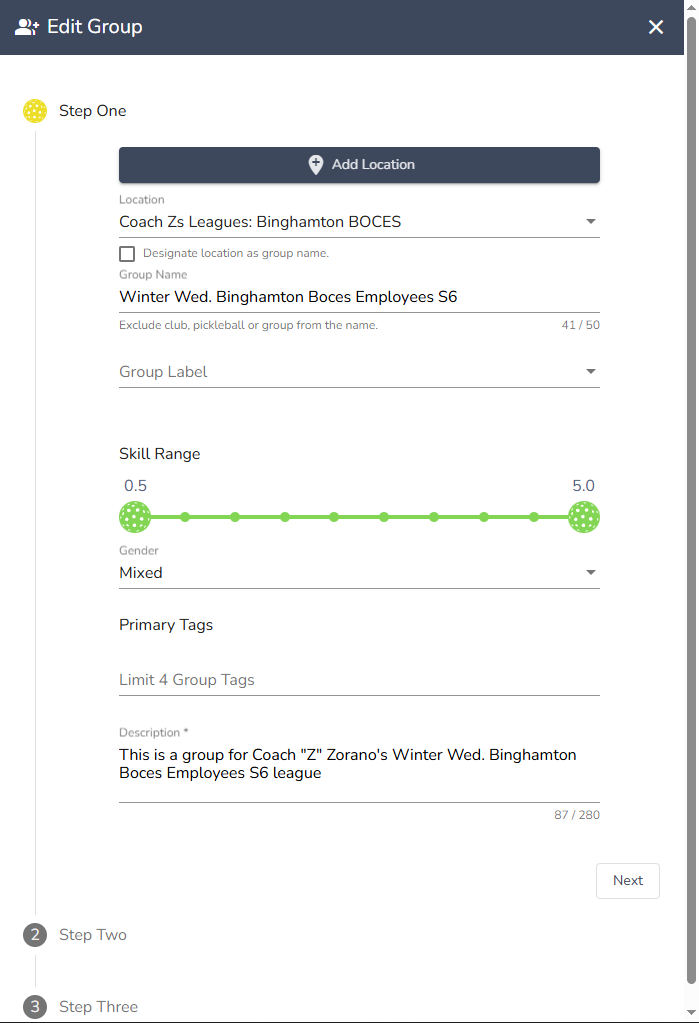
- If you have a location already created, select the location from the pulldown. If you would like to create a new location, select the button add location. Once you have filled out the location form, click save, and you will be directed back to the edit group form.
- You can designate the location name as the group name by checking the box under the location pulldown. Otherwise, leave the box unchecked and enter a group name.
- Click on the group label pulldown and select a category to further describe your group. The label will be placed at the end of the group name.
- Select the skill range for this group by clicking on the pickleball and dragging the ball to the appropriate skill level. This group is designated for 2.0 - 4.0 round-robin players.
- This group is open to men and women, so I selected genderless. I did not select mixed, because this group is designated for round-robin play. The type of play is not for teams with one woman and one man.
- Further describe your group by adding primary tags. Once you add your first tag, click off of the field and then click back on the field to add more. Tags will display on the player group card. Group tags will not display on cards for admins.
- We require you to add a written description of the group.
Step 2
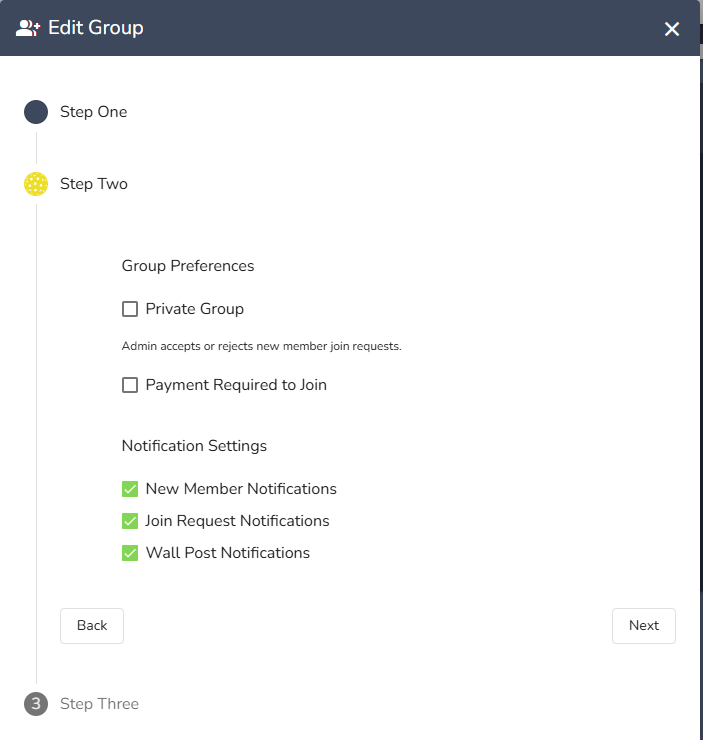
1. If you would like to monitor player's that join the group, place a checkmark in the box to make the group private. The admin will then accept or reject new member join requests.
2. Will you be using this group to charge and collect club dues?
- Yes: check the box, payment is required to join
- If a member's club dues have expired, and you would like the member to be automatically removed from subgroups, add a checkmark next to primary membership group, and select the groups that you would like the unpaid member to be removed from.
- Once the member has paid their club dues, they will be automatically added back to the subgroups they were previously in.
- No: members will not be removed from or added to subgroups based on their club dues standing.
3. Select your notification settings for this group.
Step 3
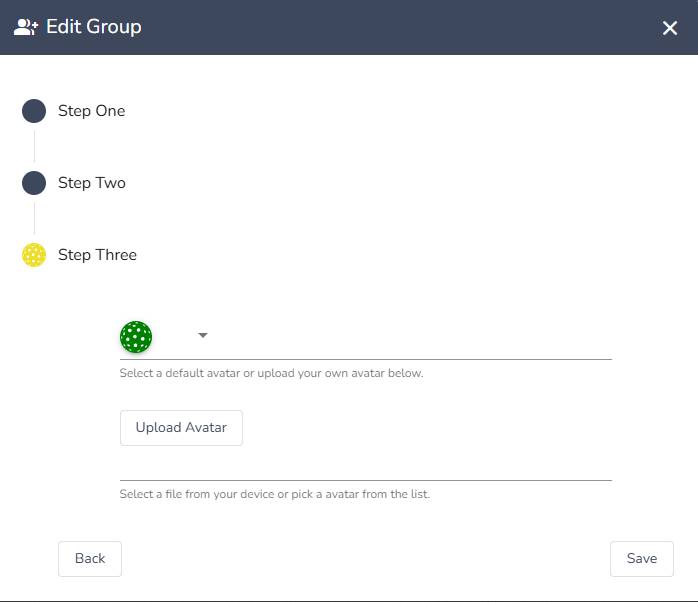
1. Select a default avatar from the pulldown, or upload your own avatar for the group.
2. Before clicking Save, make sure that all the required fields contain information. Click Save.
Comments
0 comments
Please sign in to leave a comment.