Social Feature

Introducing TrackitHub’s new social feature, released May 22, 2023.
- To access your profile click on your name below your avatar.
- You are now viewing your social profile.
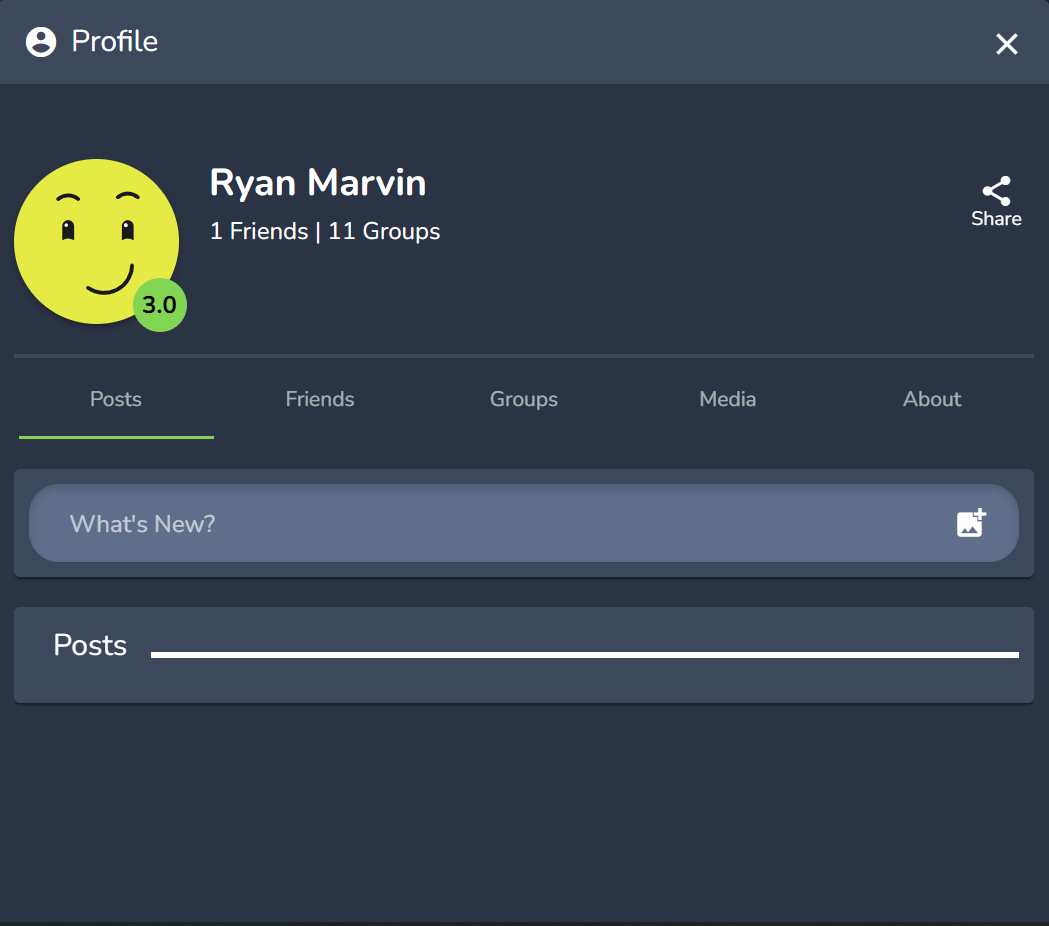
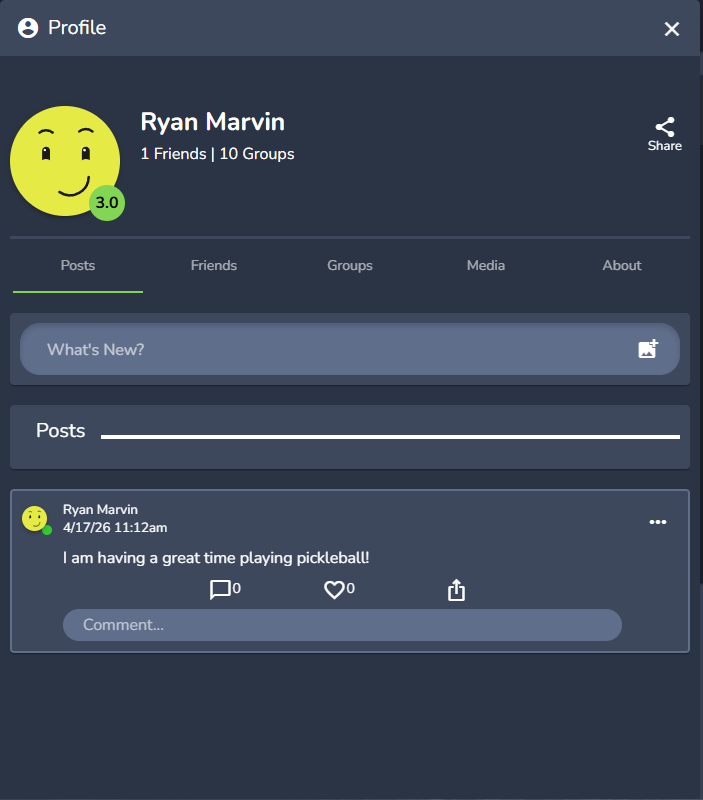
- There are two ways you can post to your feed. The first way is directly from your profile. Click in the text box, begin typing your post (you can attach images and tag a location, we'll go over this later on in the article), then click "Post".
A green notification banner will appear at the top of your screen that says "Post has been added.". Now, your post is visible on your feed.
- Next, you can view your friend list. Click on "Friends".
- You can also search for your friends by typing their name into the search bar.
- To private message your friend, click on the chat icon.
- A chat box will appear with your previous and current conversation with your friend.
- To view your inbox that contains messages with previous friends, click "Inbox"
- Here is your private message inbox.
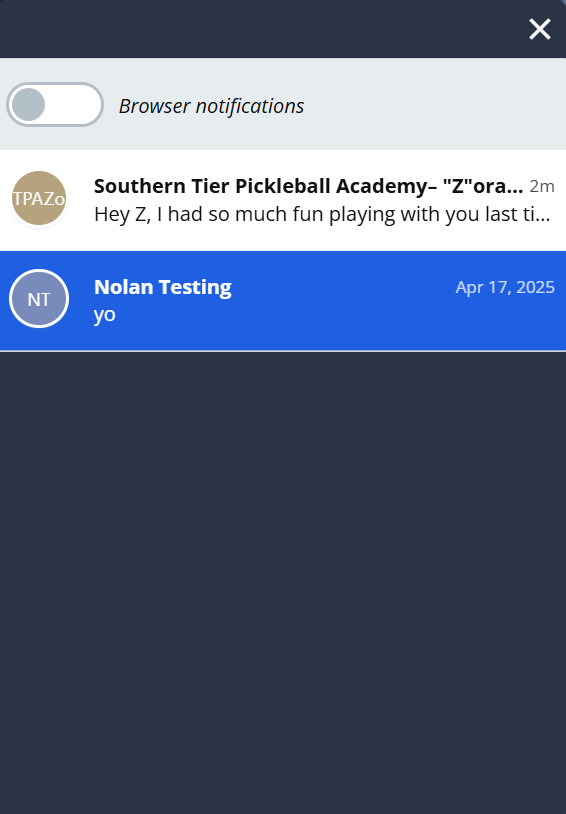
- You can view your chat inbox from the dashboard, click on the chat icon in the top right corner.
- Next, click on the “Media” tab to view your photos/photo albums.
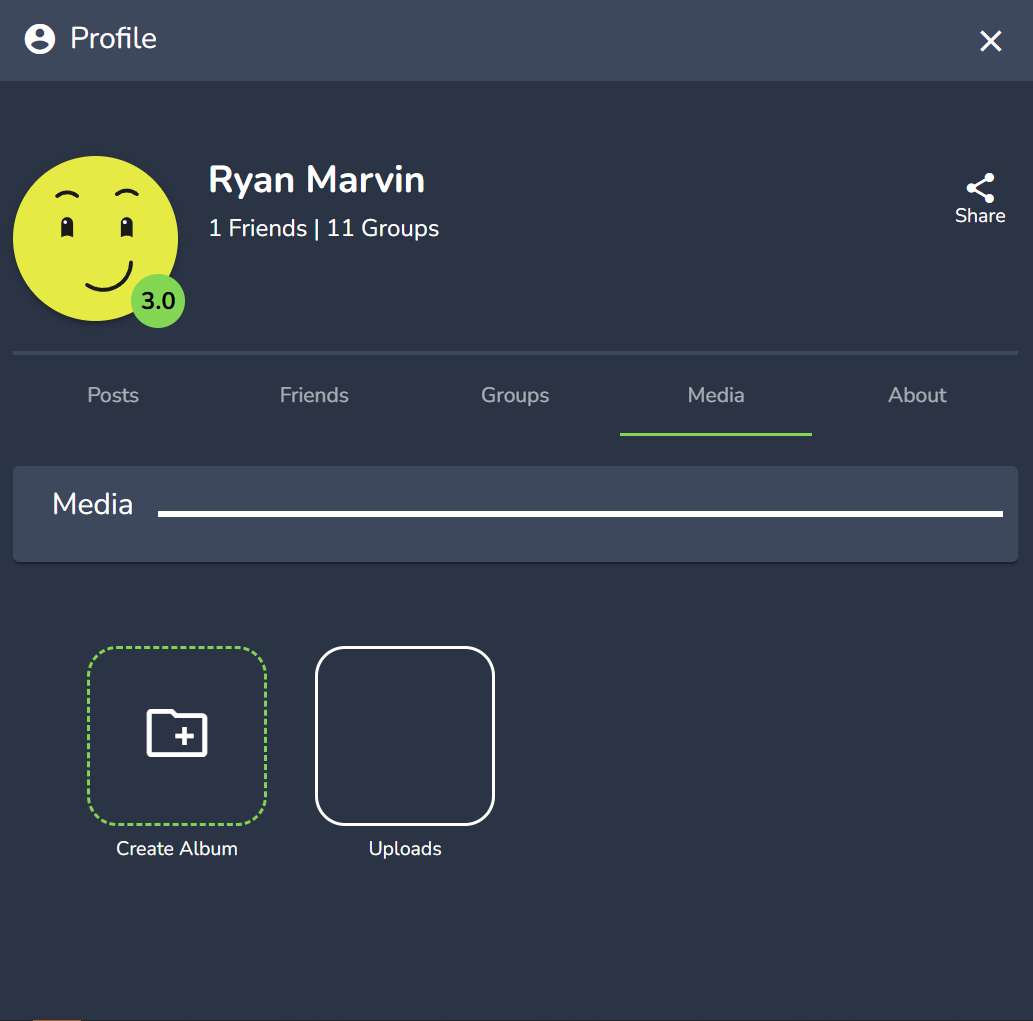
- Click on one of the photo albums to view all images.
- You are now viewing the photo album. Click on “Upload Photos” to upload a new photo to the album.
- Click on the three vertical dots in the right hand corner to edit the album.
- Next, click "About" to view your profile information. To edit your "About" section click on "Edit".
- Edit the information you need to then click "Save" to save the changes.
- Now we will go to your news feed where you can view you and your friends’ posts. Go to your dashboard, then click on the icon in between the chat icon and the magnifying glass.
- You are now viewing your newsfeed!
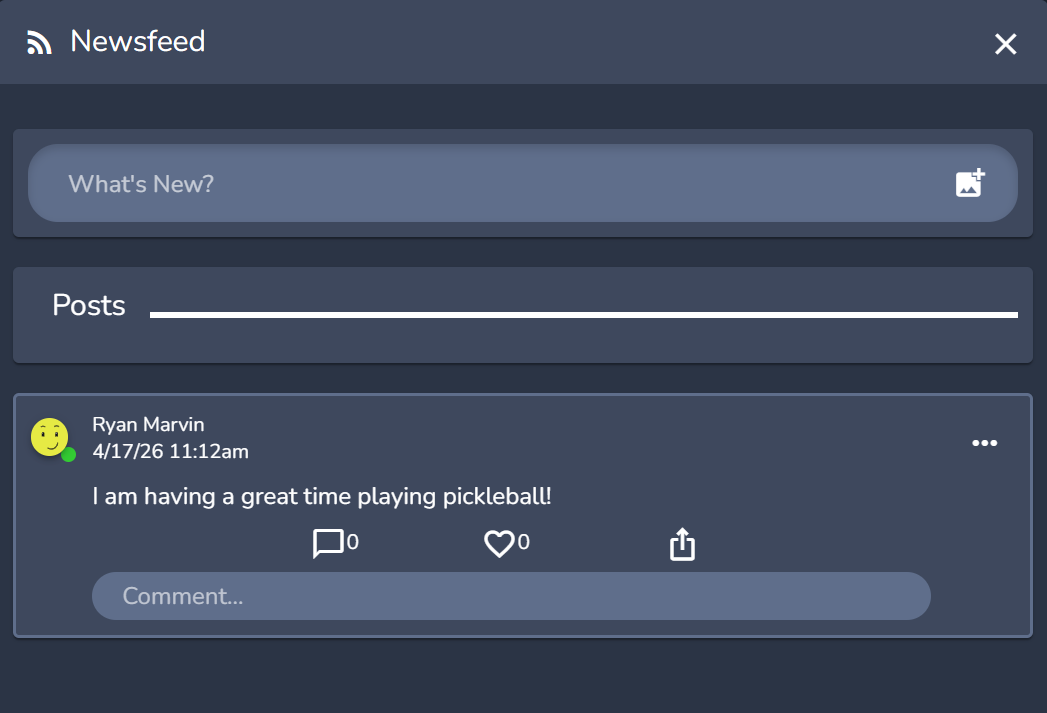
- Let’s create our own post! Click on the text box that says "What's New" to begin your post.
- Type your post. We will add an image and tag a location to this post in the next steps.
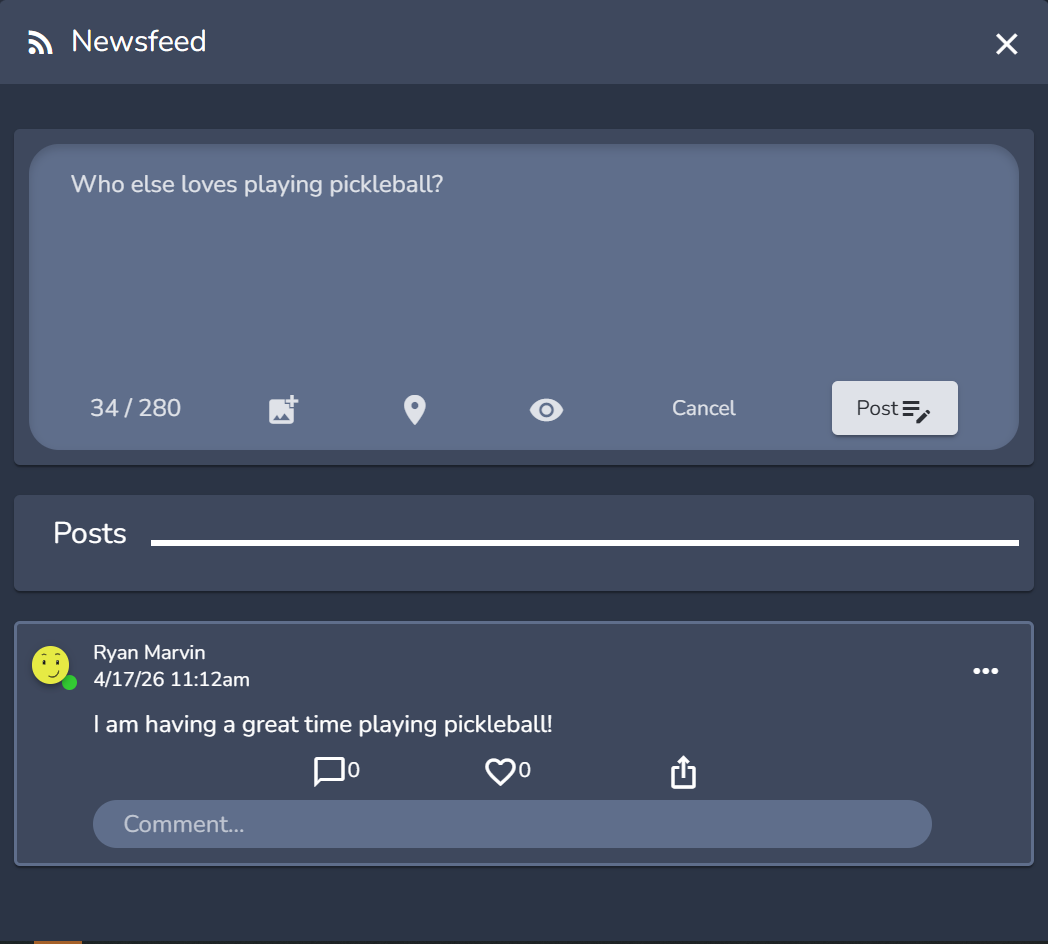
- To add an image click on the image icon.
- Then click "Choose File" and select the image you'd like to add to your post.
- The click “Select” to add your image to the post.
- Your image has been added to your post!
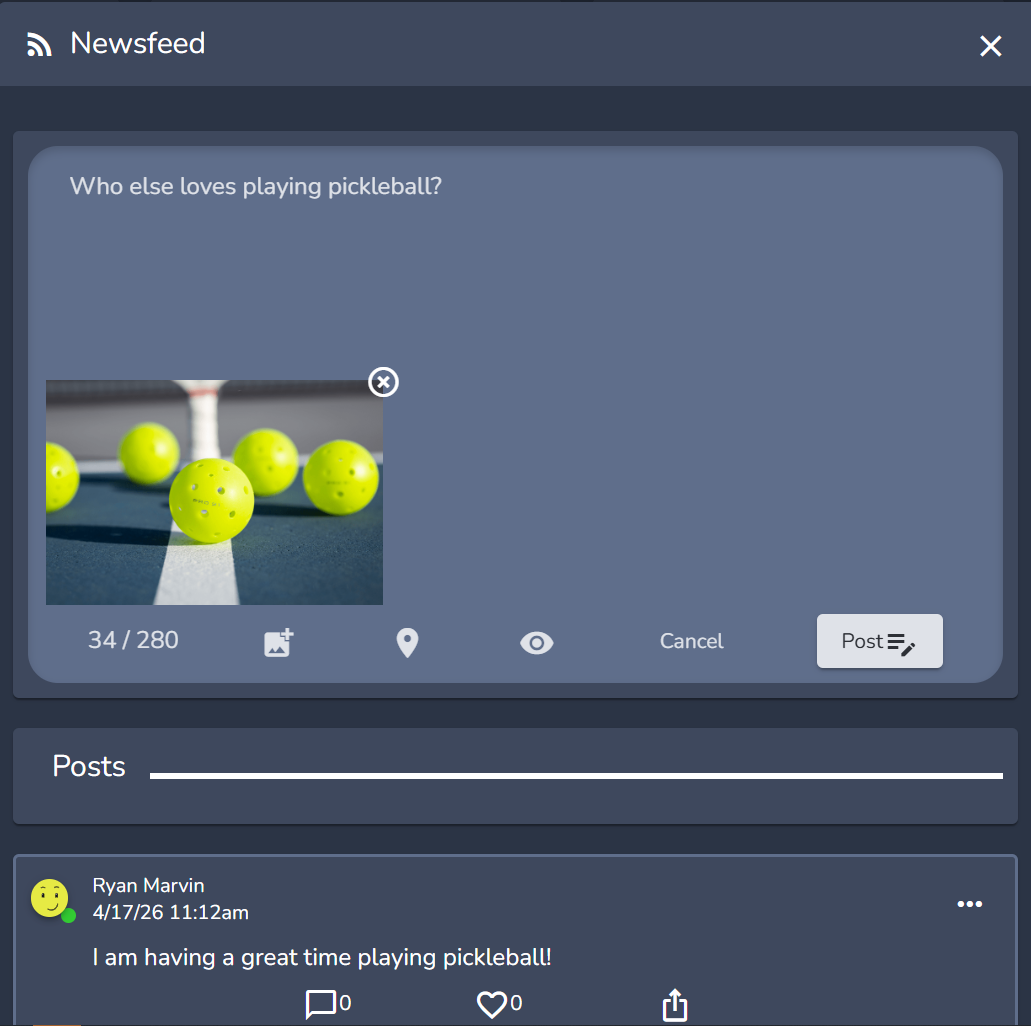
- To tag a location, click on the pin icon.
- Search your location, then click "Select"
- You have now added your location to your post!
- Review your post then click "Post". A notification banner will appear at the top of your screen confirming your post being added to the newsfeed "A post has been added".
Comments
0 comments
Please sign in to leave a comment.