View Standings

This article explains various routes a player can take to view the standings for a particular group. The easiest way to view the standings is by selecting the standings button on a specific group card that displays on the dashboard.
Route #1
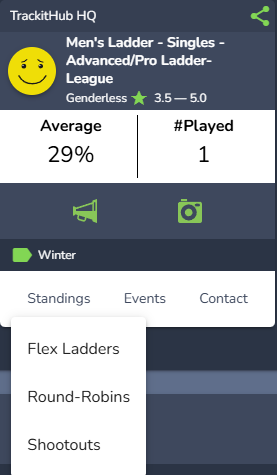
1. On the group card, click "Standings". If a group card does not display an average and the standings button is selected, a yellow message will appear at the top of the page stating, "There are no standings associated with this group."
2. If a player does have an average associated with a group and the standings button is selected, a pulldown will appear with three options, Flex Ladders, Round-Robins, or Shootouts. Select the appropriate format of organized play. You will be directed to the standings table.
3. Above the standings table, there are two pulldowns. The first pulldown allows the player to jump between different groups they are a member of. The second pulldown lists all the play events that have taken place.
4. To view a scorecard, select an event from the second pulldown and click View Scorecard.
5. The scorecard displays final scores for each game played in that event. To go back to the standings table, select View Standings.
Route #2
We have provided a new shortcut to the standings table from the My Groups bottom panel.
1. Select My Groups from the TrackitHub dashboard. While using a mobile device, a user can open the left navigation menu by clicking on the icon at the top left corner of the page represented by three horizontal lines.
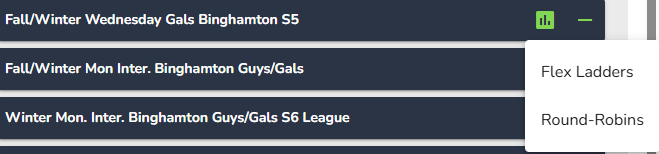
2. Each group has a square standings icon that will direct the user to the standings table for that specific group. Just like in route #1, clicking on the standings icon will either show a dropdown of play options or a yellow banner will appear at the top of the screen that reads "There are no standings associated with this group" if there have been no events or if the group does not show averages.
Route #3
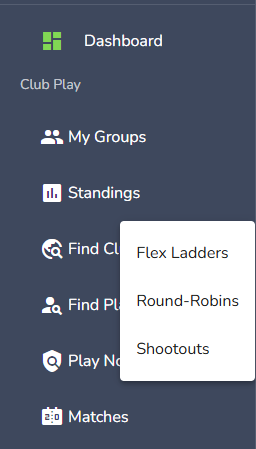
1. Select Standings from the left navigation menu. While using a mobile device, a user can open the left navigation menu by clicking on the icon at the top left corner of the page represented by three horizontal lines.
2. A pulldown will appear with three options, Flex Ladders, Round-Robins, or Shootouts. Select the appropriate format of organized play. You will be directed to the standings table.
Comments
0 comments
Please sign in to leave a comment.