Sending Emails To Members

After reading this article you will be able to:
- Send an email to all members of a group
- Send an email to specific members of a group
- How to manage your TrackitHub email inbox
Sending An Email To A Group
While on the TrackitHub dashboard, click Email on the desired group or club card.
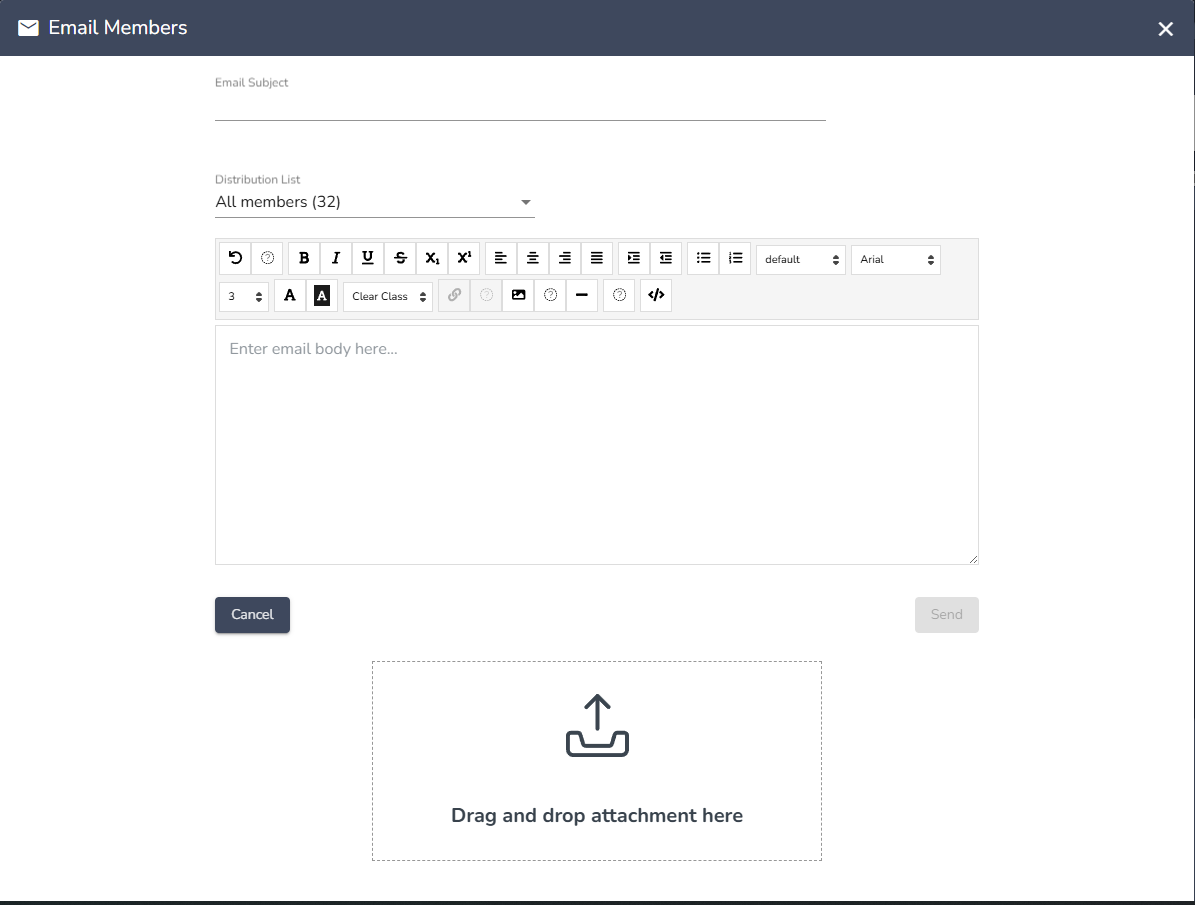
Then, fill out the form and send out your email.
Emailing Individual Members
From the dashboard, there are two ways to access the club or group roster:
- Click on Roster on the club/group card
- In the Club Play tab, click on Roster
If you want to change the club or group you are selecting from, click the dropdown menu outlined in the red box and select an option
To search for a member by name, type their name into the search bar
To select all members in one click, check the box next to the email icon that the red arrow is pointing to. To deselect all selected members, click on the same box again.
Once you have found the member you would like to email, check the box that the red arrow is pointing to to select them.
If you have completed the previous step, the box next to the player's first name should be filled in green and have a check mark next to it.
Click the email icon that the red arrow is pointing to.
Lastly, write your email and click Send.
Managing Your Outgoing Emails
To view outgoing emails, click on the icon to the right of the Outgoing Emails label, in this image it's circled in red
Clicking on the checkmark to the right of an email will remove it from your Outgoing Emails
After clicking on the checkmark, you will see the email disappear from the graphic and a green notification banner will appear on the top of the screen.
The email is not deleted however, you can view it by clicking on the Outgoing Emails icon.
Comments
0 comments
Please sign in to leave a comment.